Toggleable toy fields
Options that can be turned off or on using Settings
Age Ranges
Age Ranges is a feature that can be turned on via the Settings page.
Set the age range options via the Age Ranges page, under the Toys drop down menu.
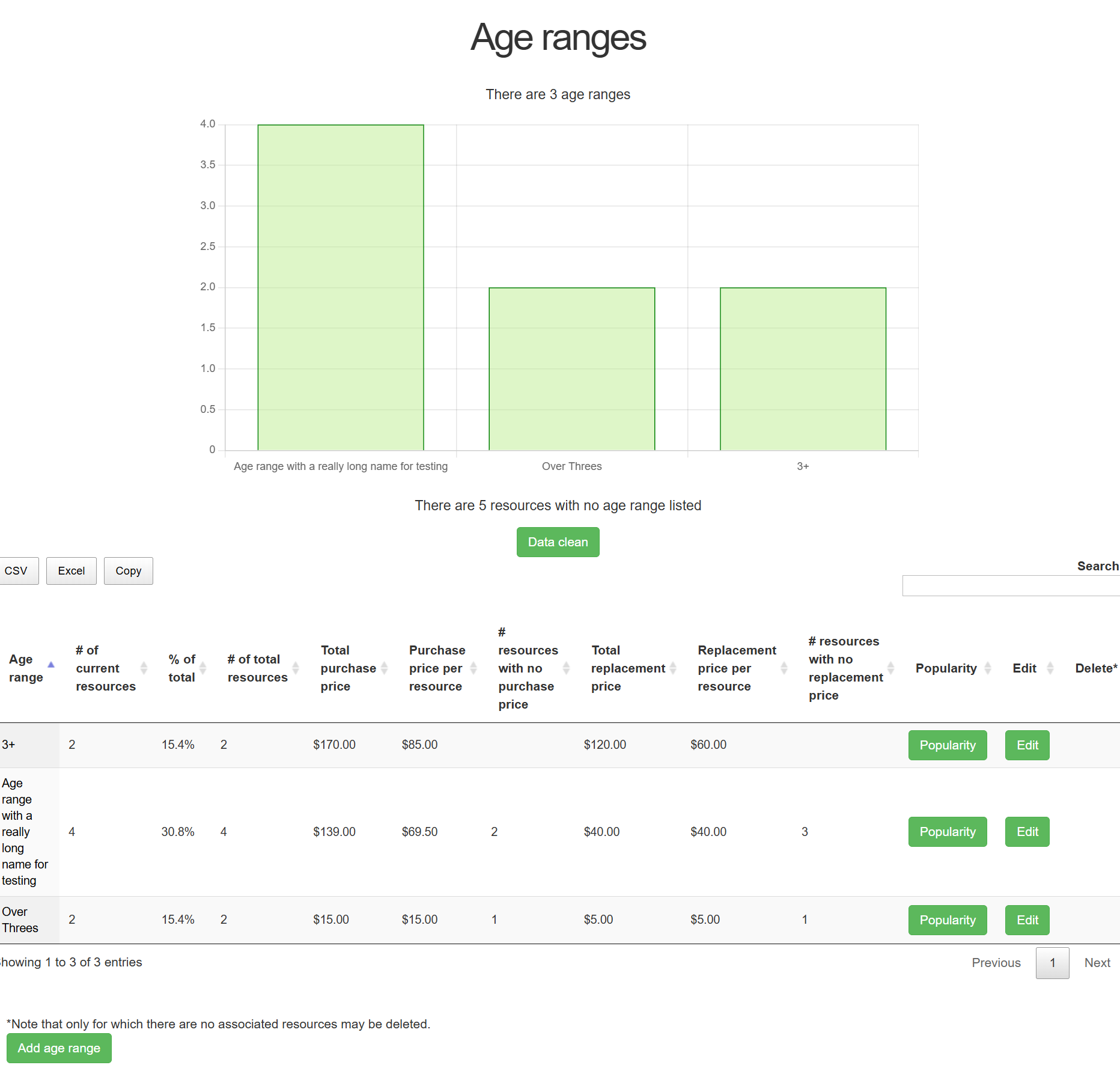
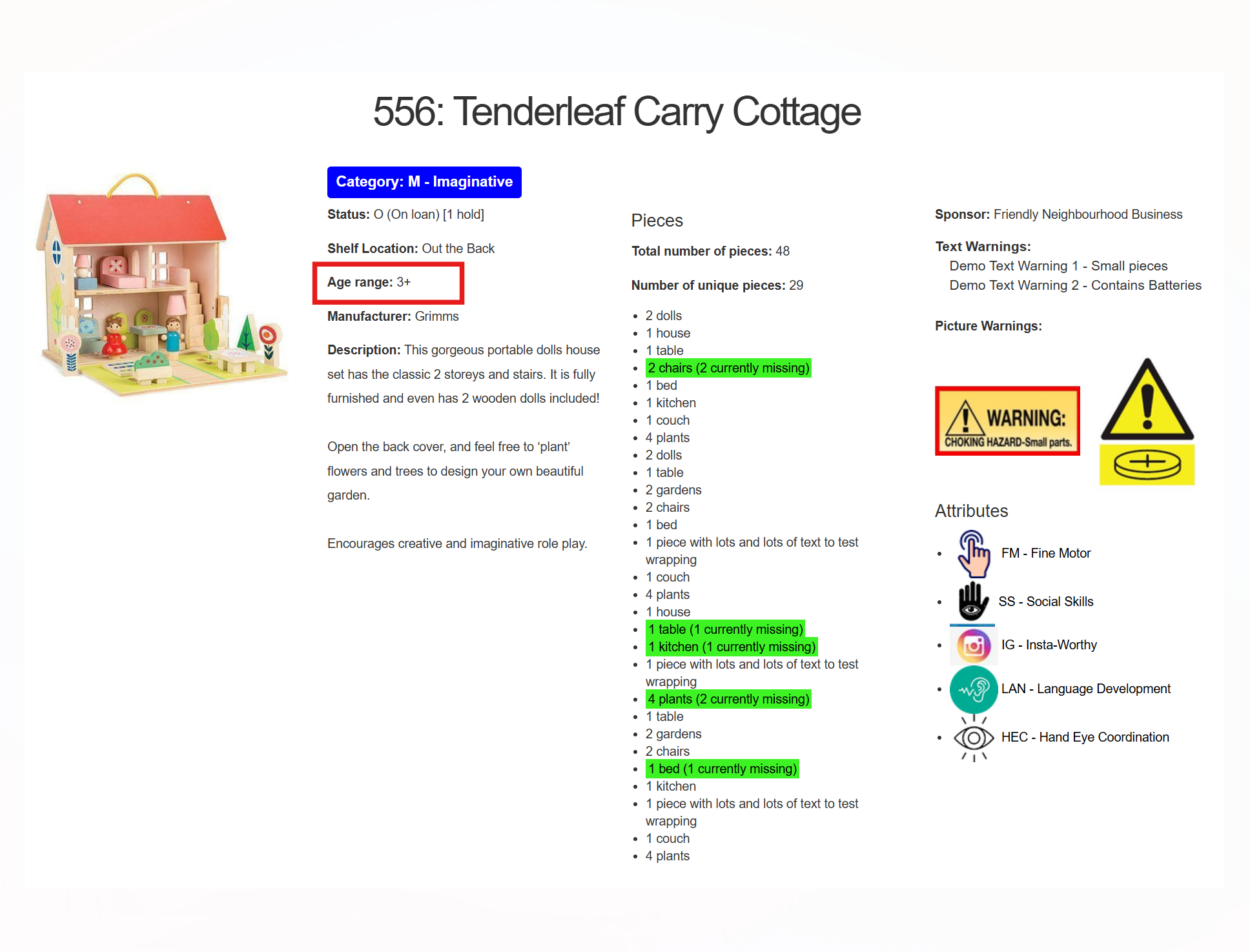
Age Range can be added to a toy via editing, or at the point of creation. Age Range is visible to public.
Attributes
Attributes are a feature that must be turned on via the Settings page. A secondary setting is available to show these attributes to the public.
Set the attribute options via the Attributes page, under the Toys drop down menu.
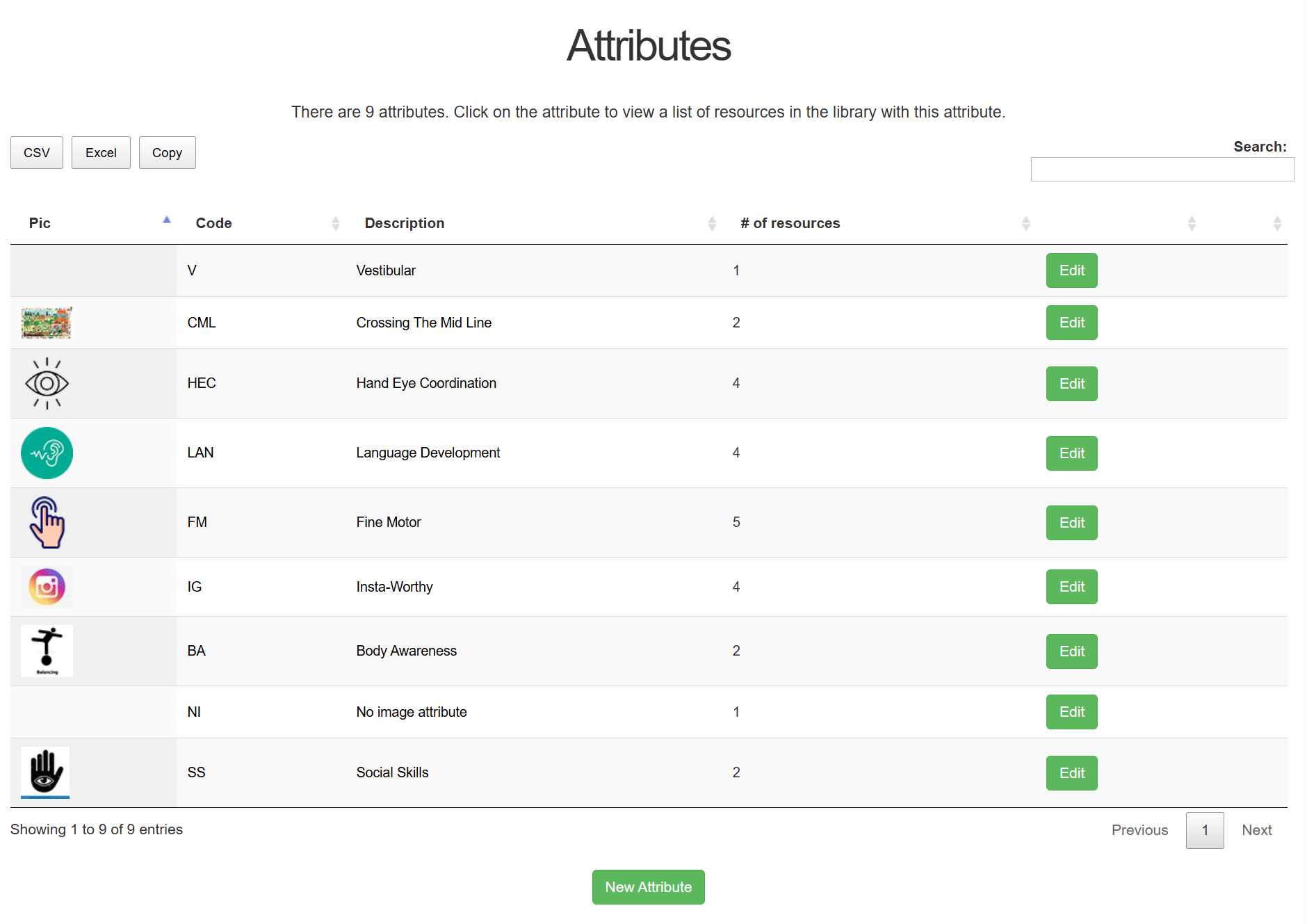
Attribute Pic will display at 50 pixels by 50 pixels. Toys can have up to 20 attributes. Empty spaces and duplicates will be ignored.
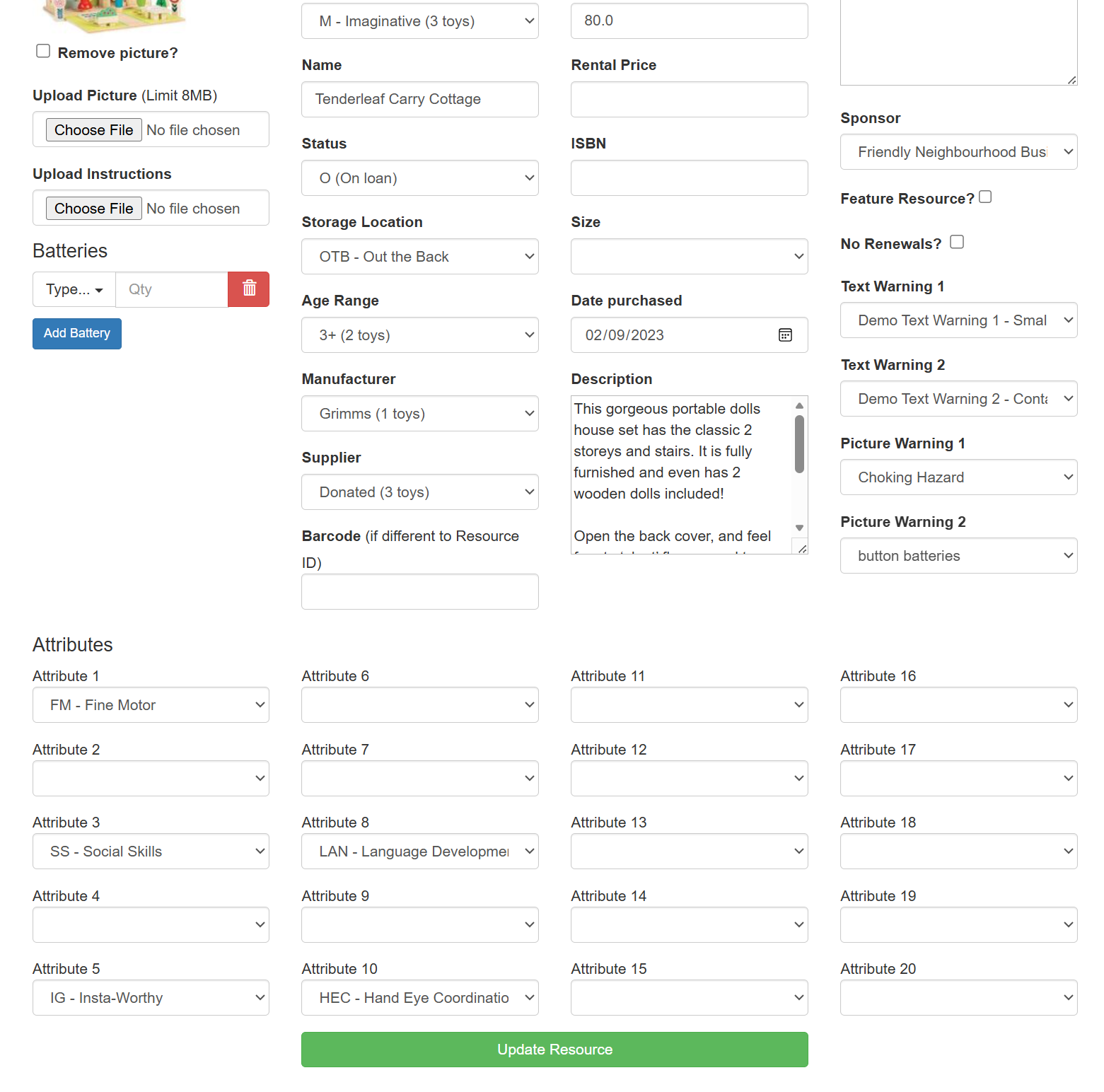
Admin view:
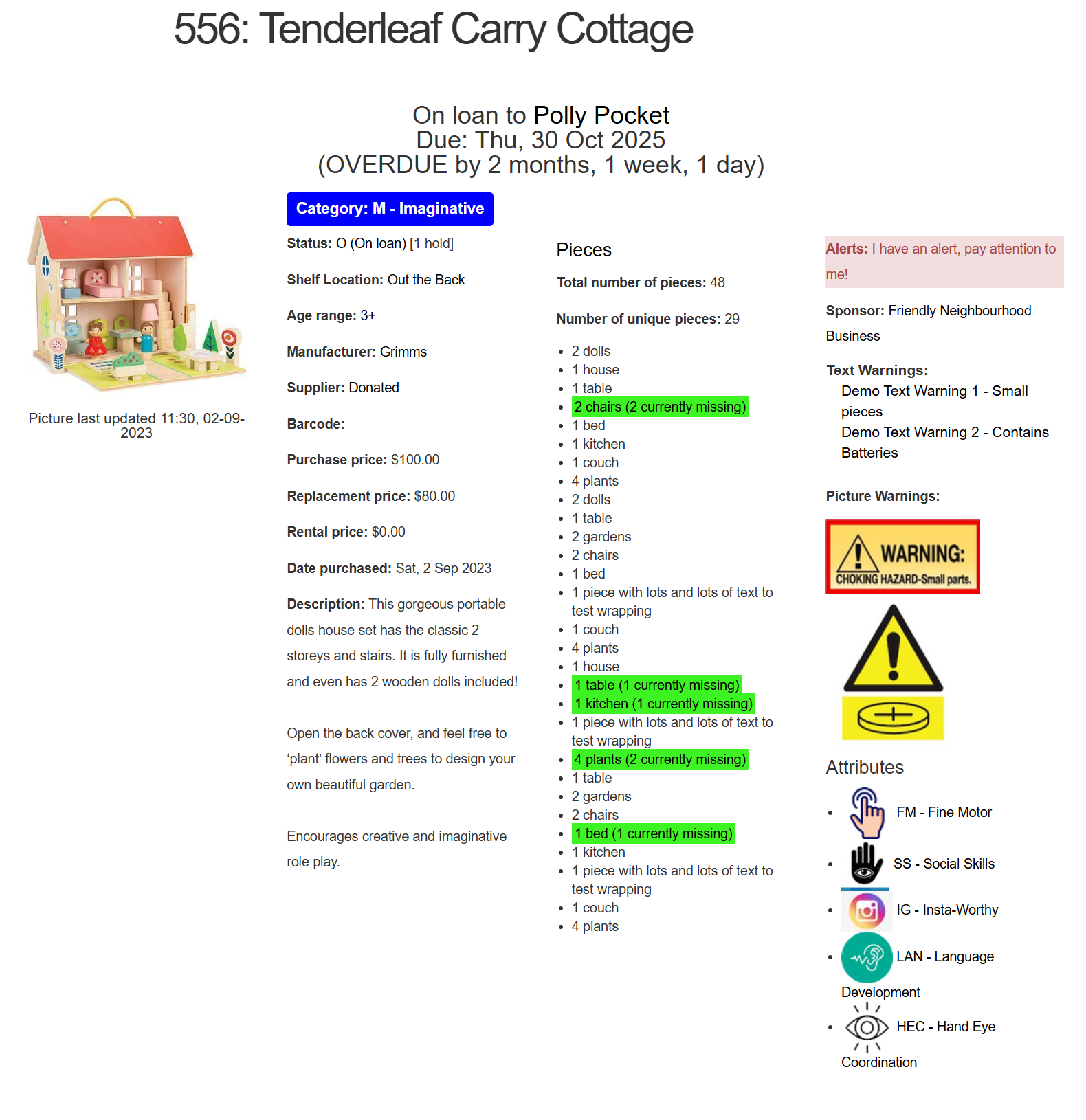
Public view (if enabled):
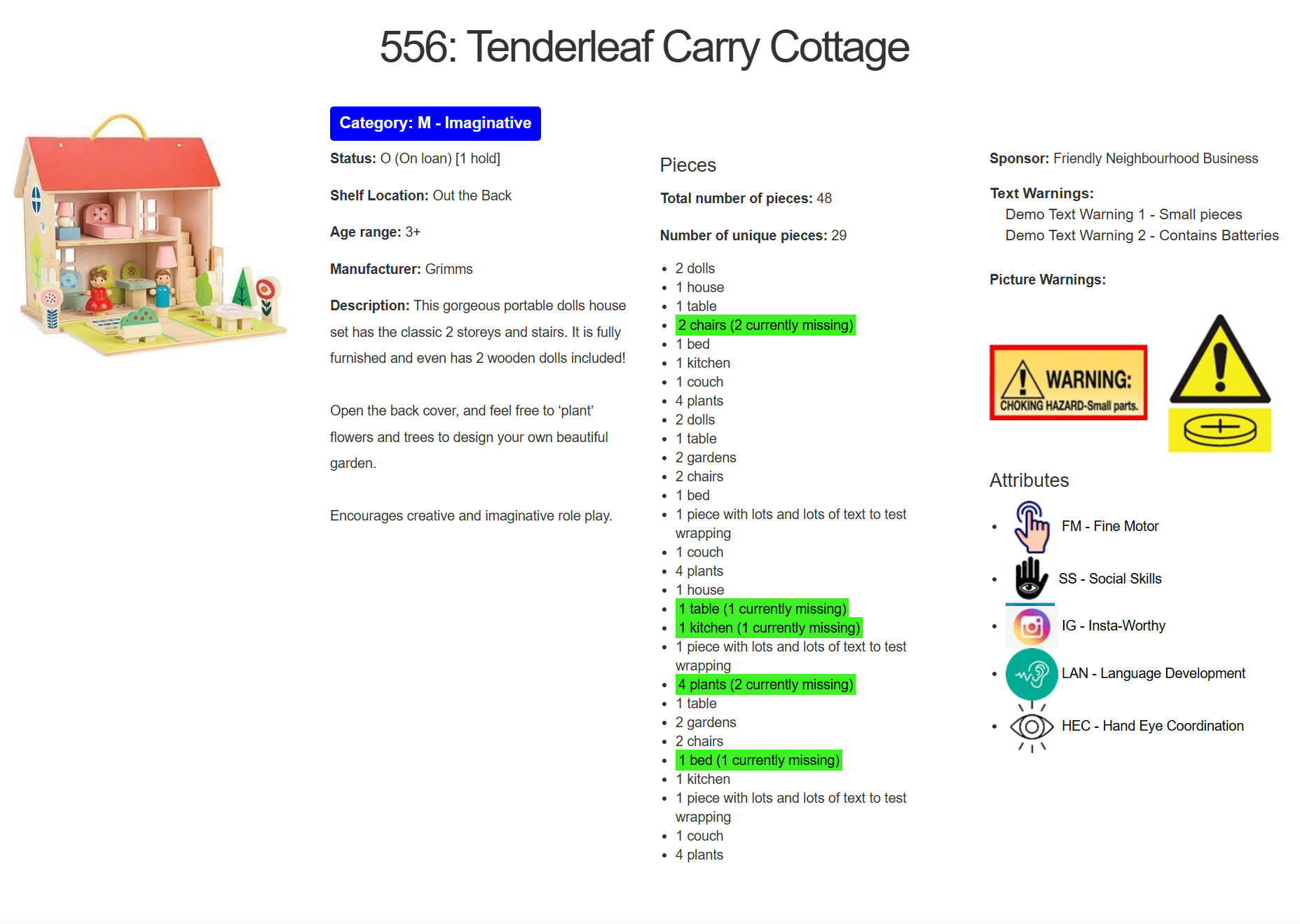
Batteries
Batteries is a feature that can be turned on via the Settings page.
Set the battery options via the Batteries page, under the Toys drop down menu.
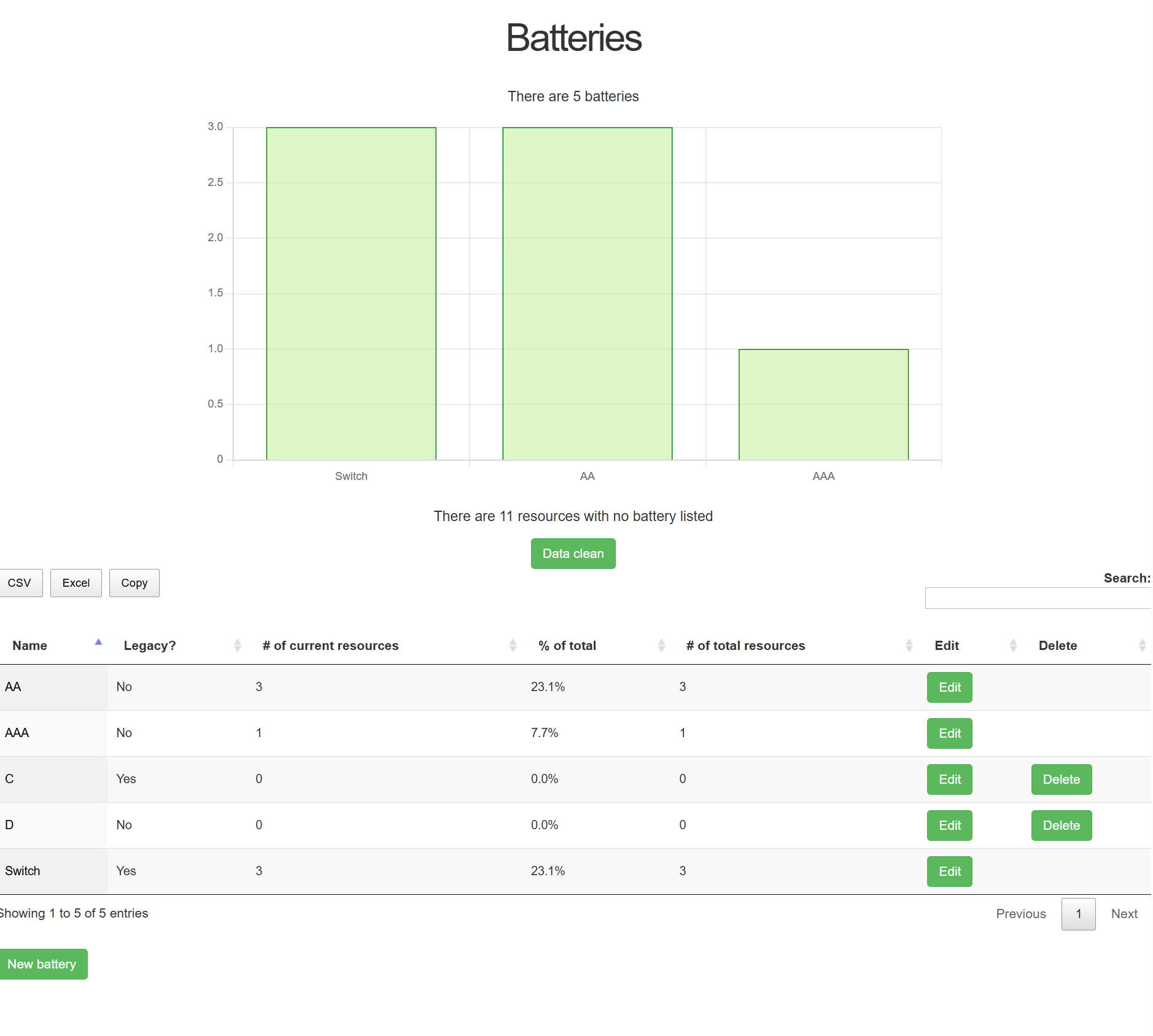
When creating or editing a toy, multiple battery rows can be added.
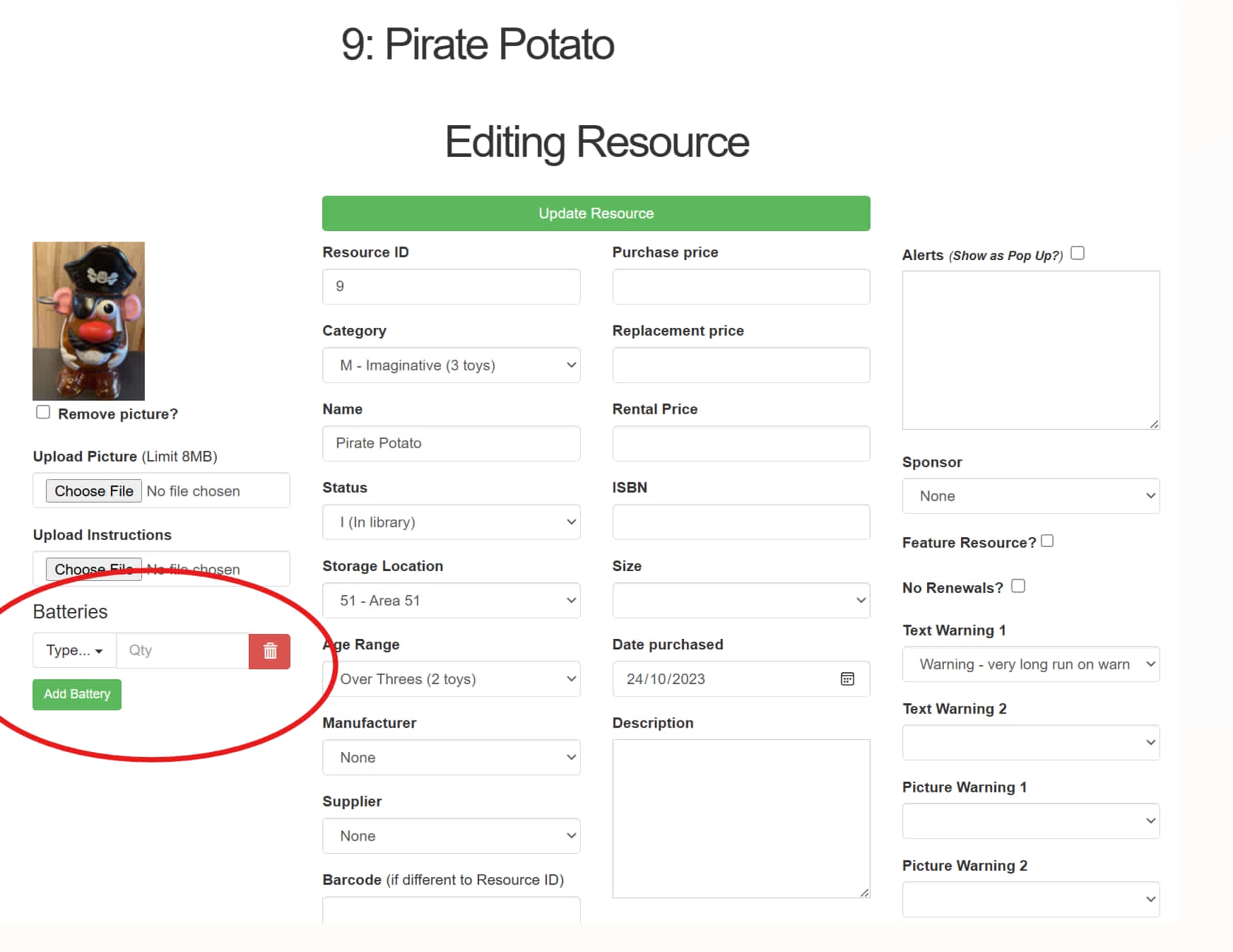
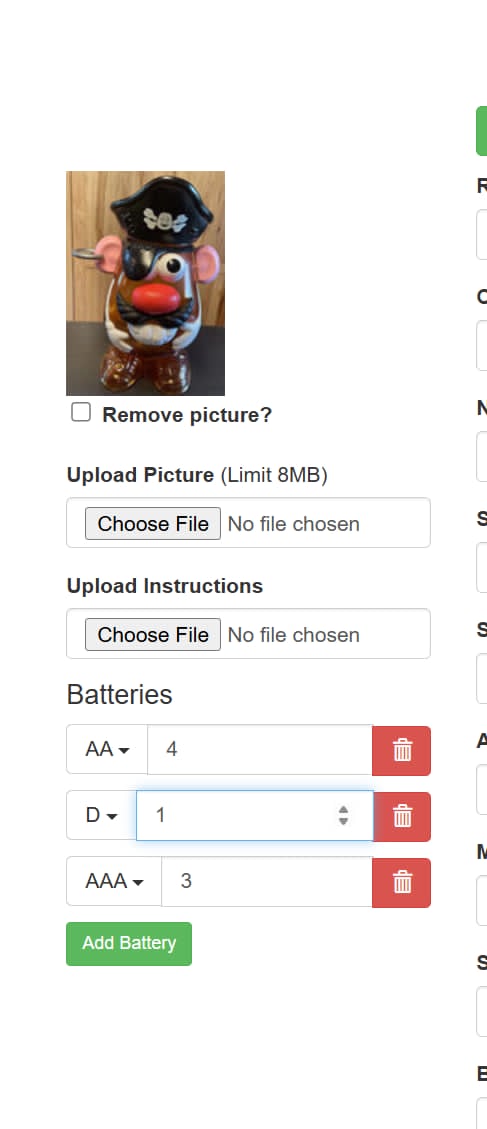
If a toy has any batteries recorded, they will appear on the far right of the toy's page. This information is visible to the public.
Admin view:
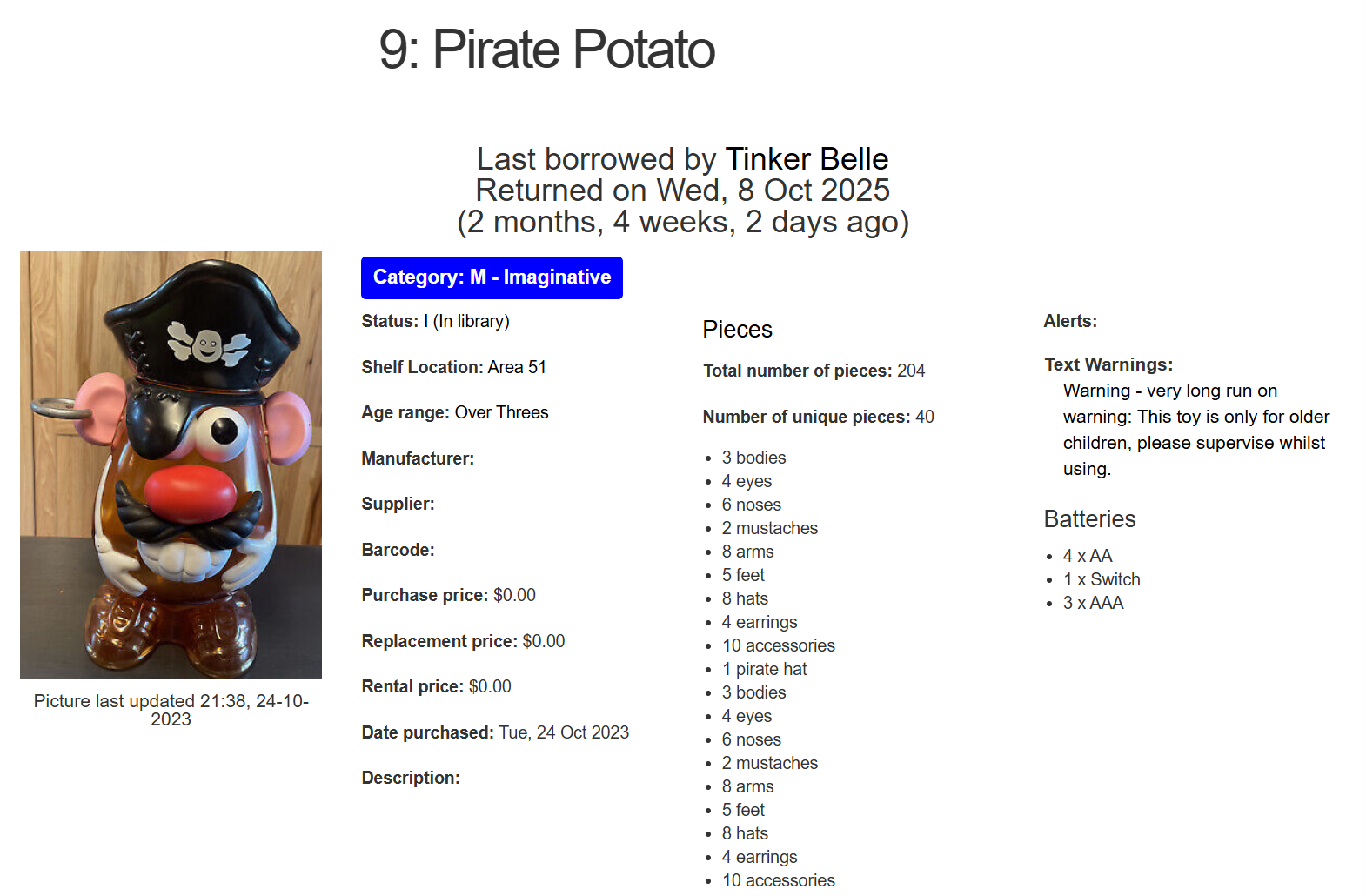
Public view:

Storage Locations
Storage Locations is a feature that can be turned on via the Settings page.
Set the storage location options via the Shelf/Storage Location page, under the Toys drop down menu. Storage Location Color is used in some label templates.

Shelf Locations can then be added to a toy (either by editing or at the point of creation). Shelf Location is visible to public.

Sponsor
Sponsor is a feature that can be turned on via the Settings page.
Set the sponsor options via the Sponsors page, under the Toys drop down menu.
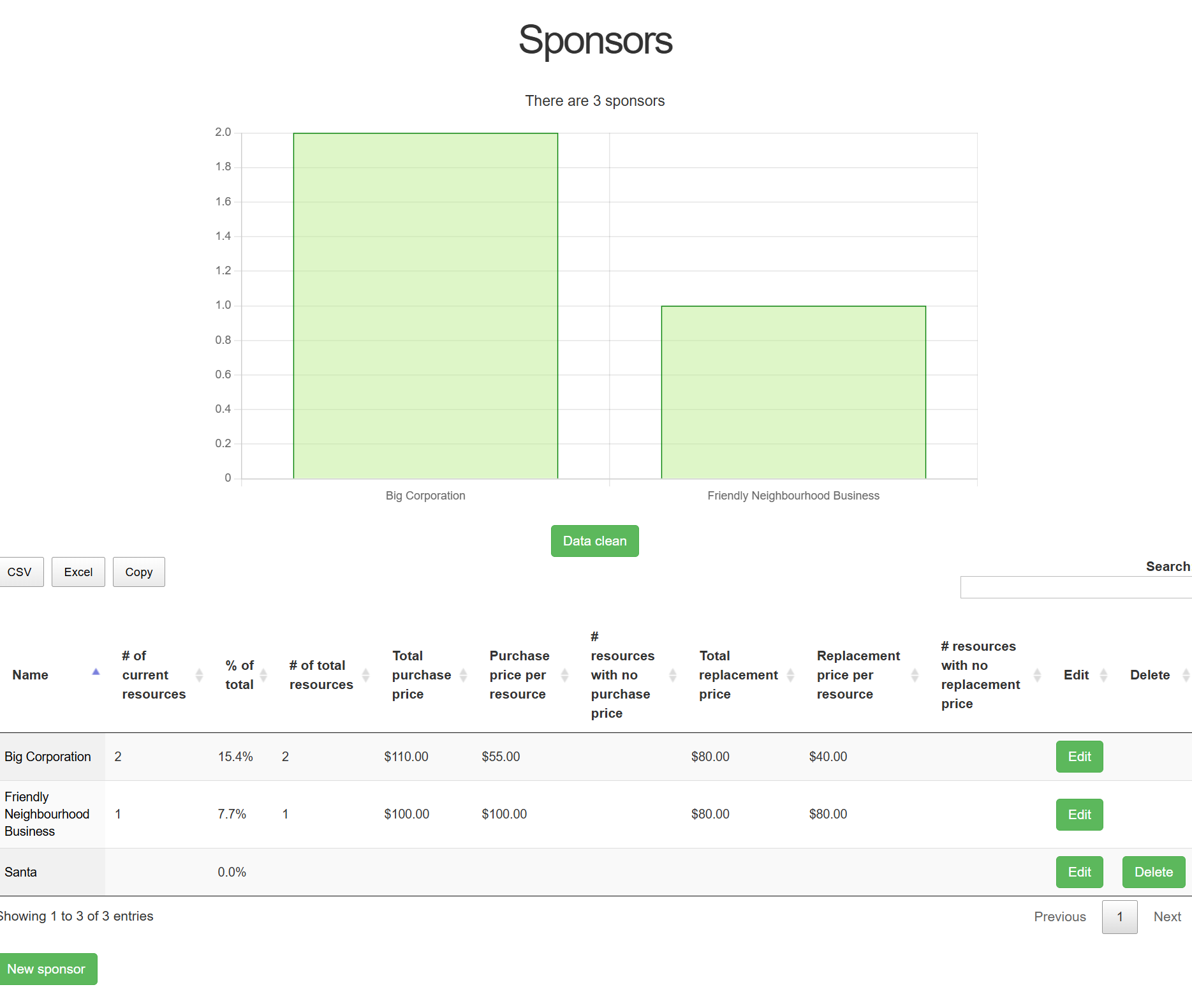
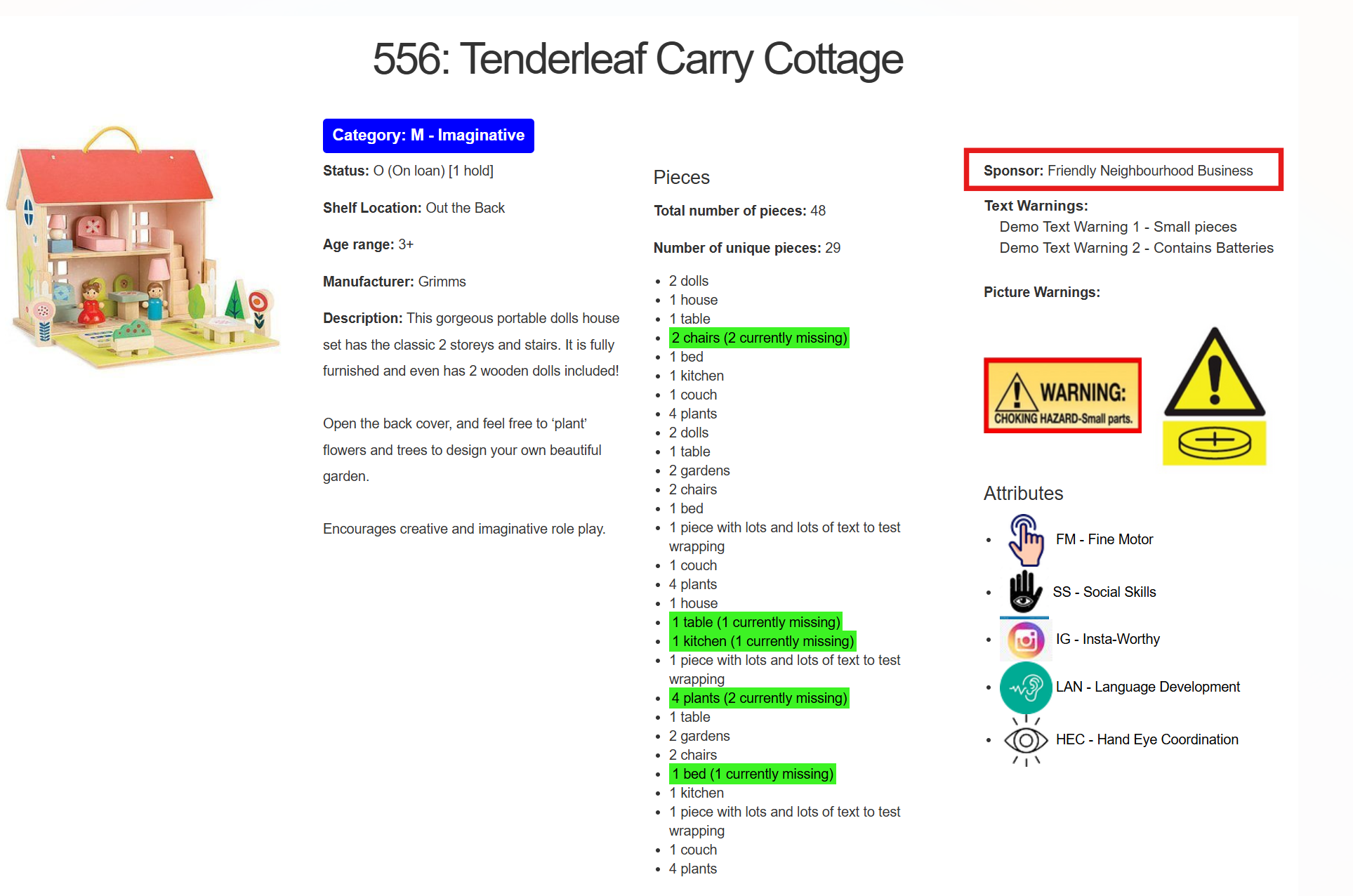
A sponsor can be added to a toy via editing or during creation. Sponsor is visible to the public.
Super Categories
Super Categories is a feature that can be turned on via the Settings page.
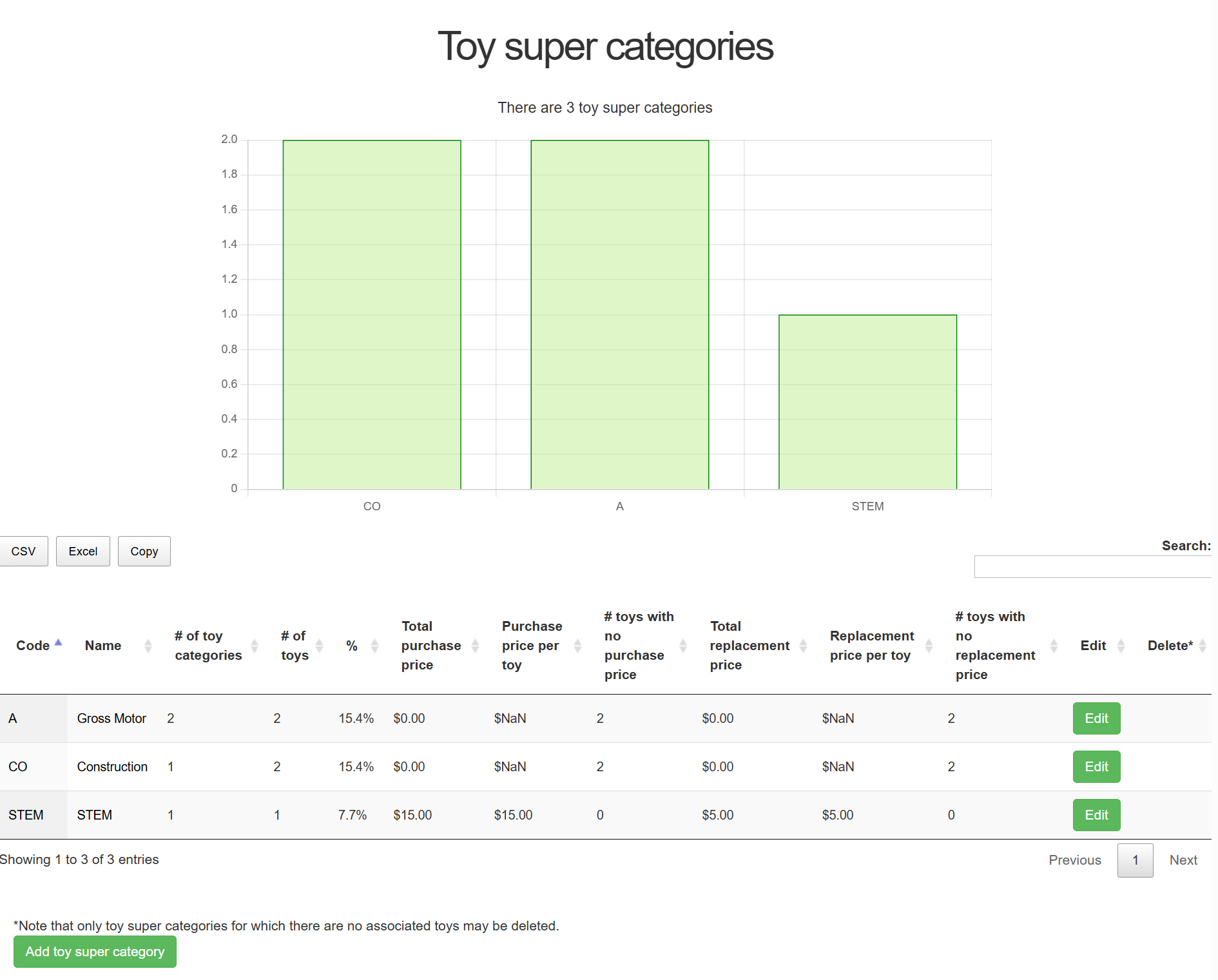
Set the super category options via the Super Categories page, under the Toys drop down menu.
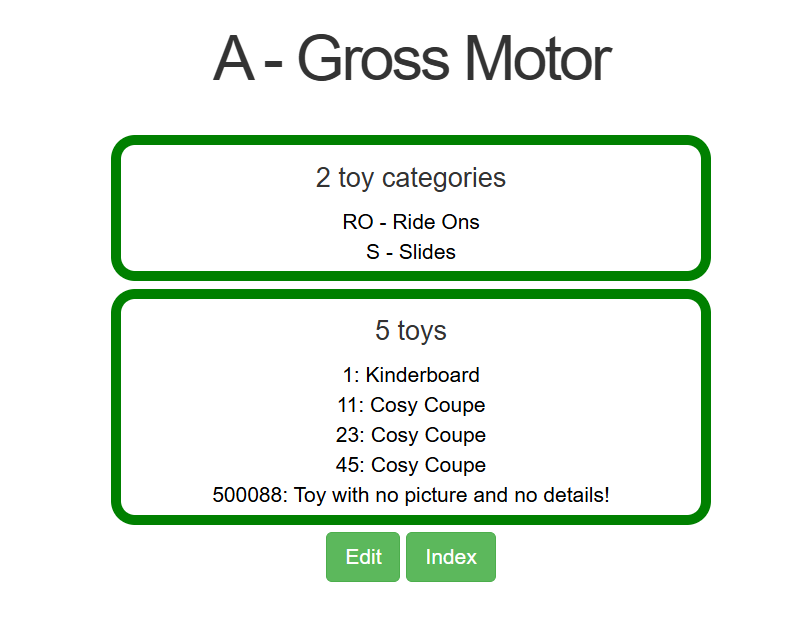
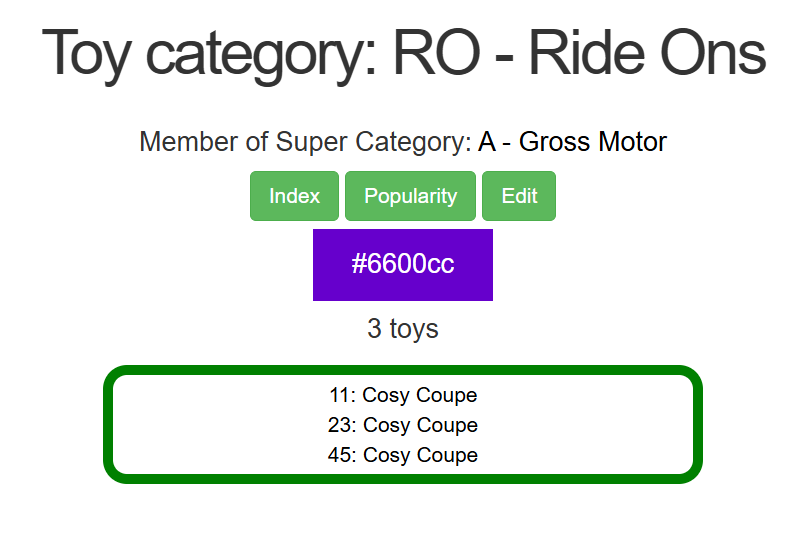
Viewing a Super Category will show all Categories associated with that Super Category, and all the toys within those Categories.
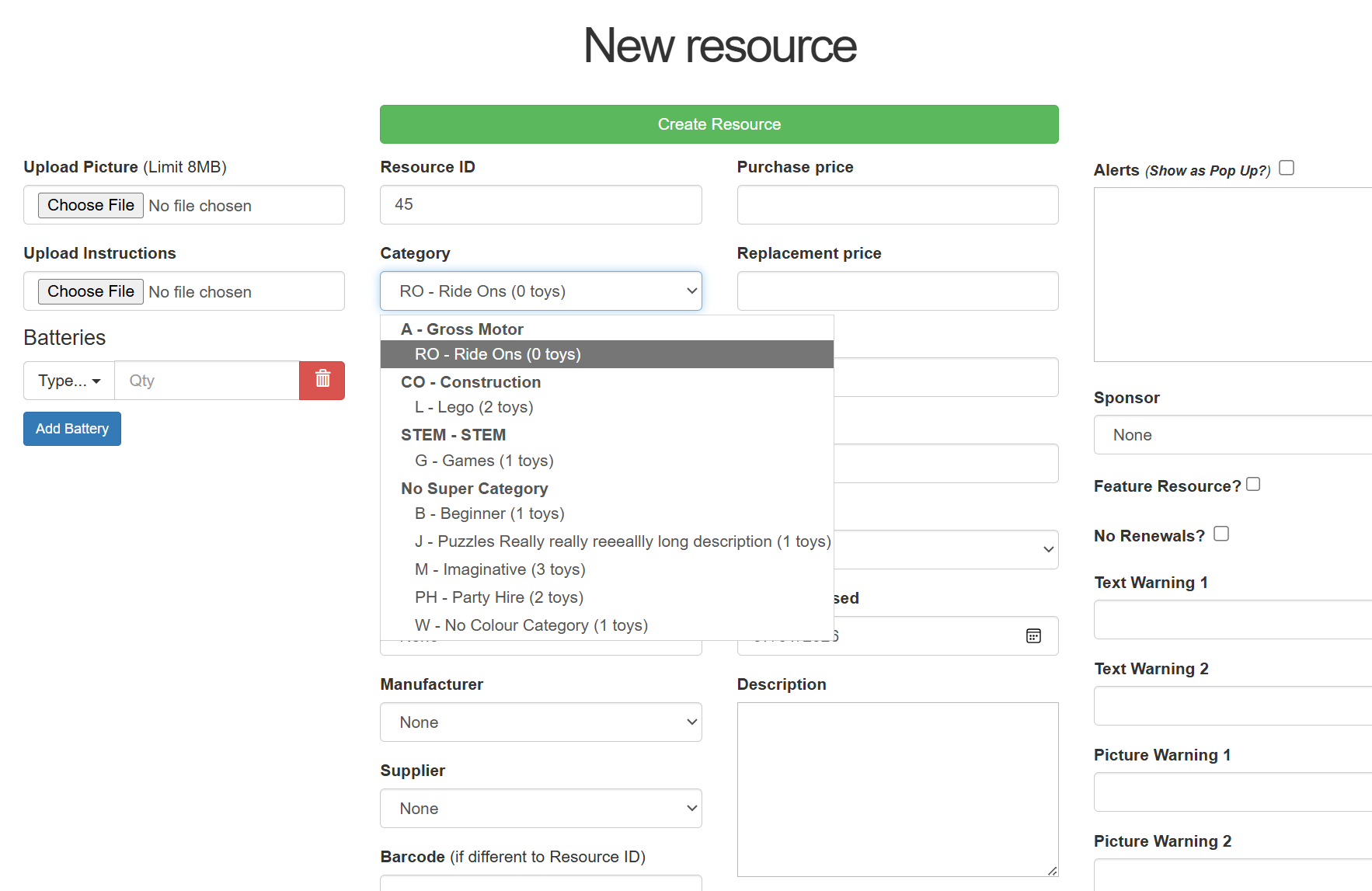
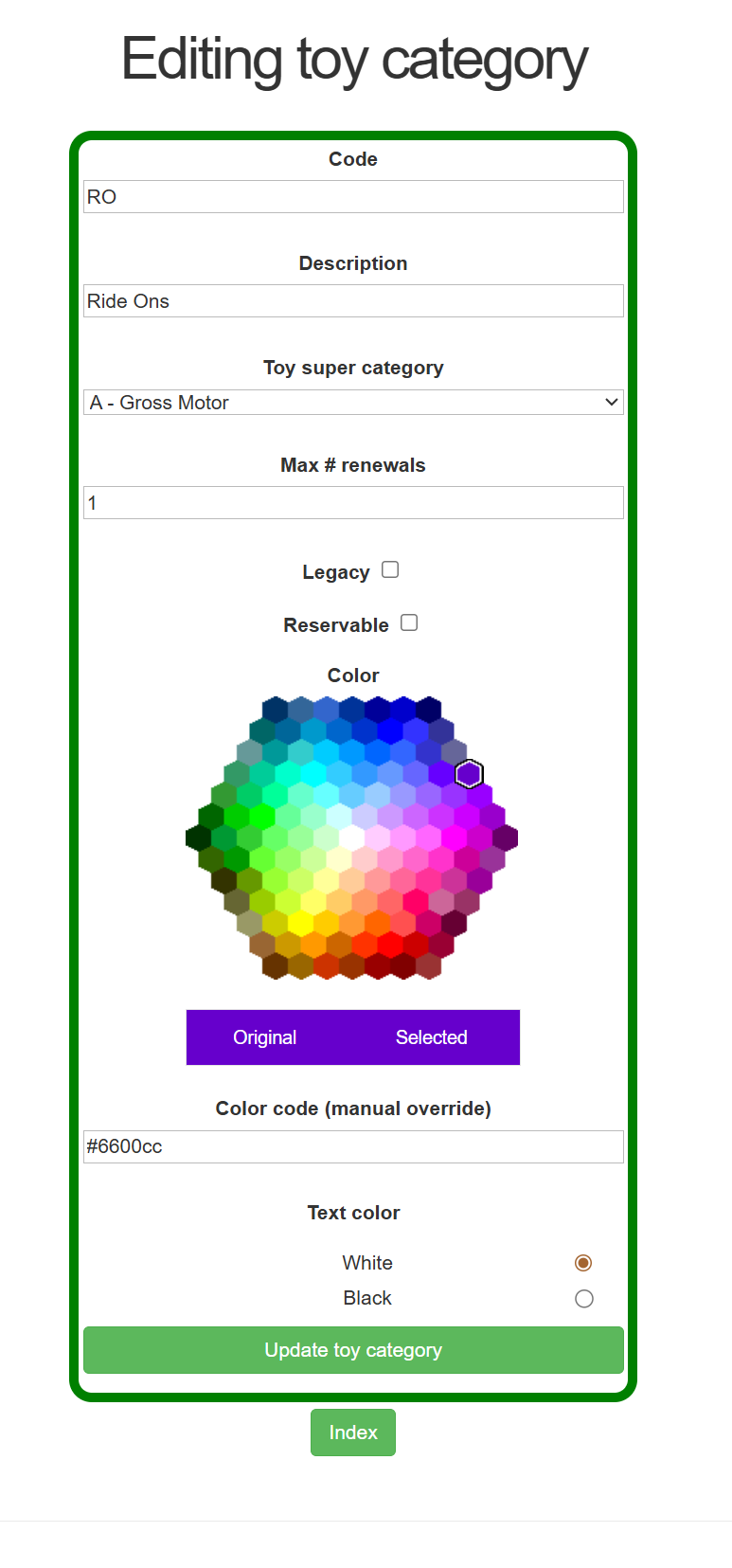
When editing or creating a Category, a Super Category can be selected:
When editing/creating a new toy, Categories will be sorted by Super Category. Note: Super Category does NOT display on the toy's page.